Product: Quark Publishing Platform (QPP) NextGen
QPP NextGen allows you to upload files or even entire folders from your local machine to your QPP NextGen server or repository.
On the user interface, you can upload a file or folder to your repository through one of the following two options:
-
Upload button on the top navigation bar
-
Upload button at the upper-left corner of several listing pages
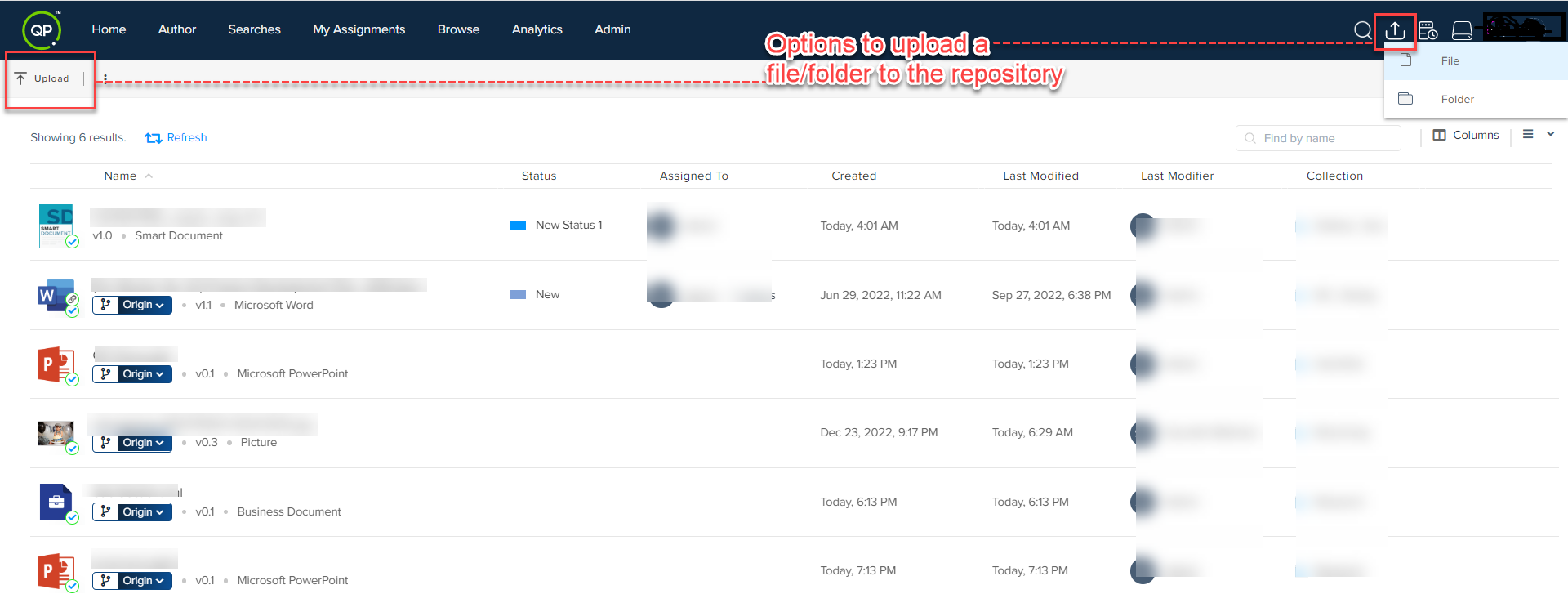
To upload a file or folder from your local machine to your QPP NextGen server:
-
Select the button Upload to expand the pane which lists File and Folder.
-
Select File or Folder based on what you want to upload.

-
In the Open dialog of your local machine, select the file/folder that you want to upload to the server and then select the button Open.

-
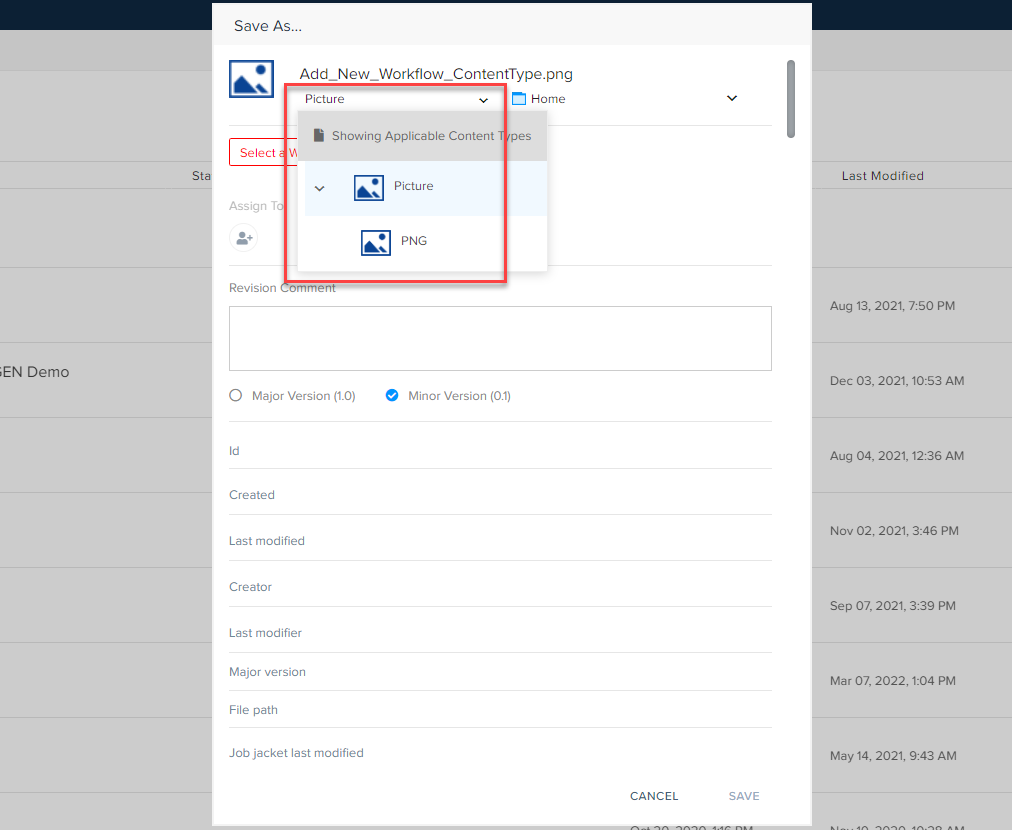
In the Save As dialog, select a location on the repository, enter a name, related content type (only for a single file), major or minor version number, and revision comment (optional), and then select the button Save.
When you upload a folder, you only need to select a location on the repository.
-
QPP NextGen displays an upload progress bar at the bottom of the webpage, which you can expand into a pane through the up-arrowhead icon at the right end of the progress bar.

-
The upload Progress pane displays the real-time progress of the files that are being uploaded to the server.

You can also select the content type of assets that you directly upload through the button Upload across the platform.
Priyanka Bhotika
Comments