Product: Quark Publishing Platform (QPP) NextGen
Summary: The QPP NextGen Script Manager (or Script Manger) allows you to manage automated scripts that perform actions without requiring another QPP NextGen application or user intervention.
A script has access to all the QPP NextGen Server objects and can invoke all the operations defined in QPP NextGen Server API to produce the required results. To use a script, you first must save it while logged on to QPP NextGen Server and import it.
Scripts can be deleted or exported to the desired location for future reference.
To delete a script in a Script Manager, follow the below steps:
-
Open the script in Service Manager.
-
Use one of the following methods:
-
Select File > Delete.
-
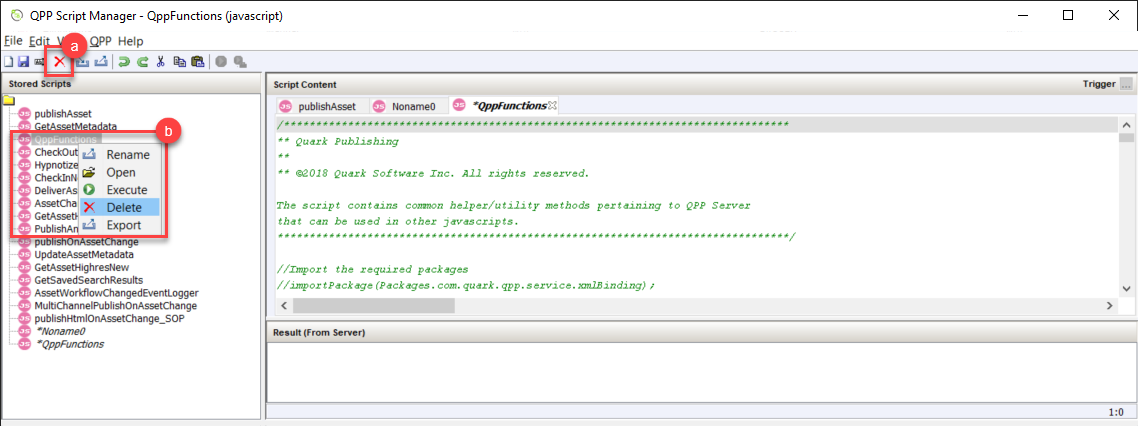
Select the Delete icon
 in the toolbar.
 -
Right click on a script name in the Stored Scripts section, and then select Delete in the context menu.
-
- Service Manager prompts a message for you to confirm the deletion.
-
Select OK/Delete.
To export a script:
-
Open the script in Service Manager.
-
Use one of the following methods:
-
Select File > Export.
-
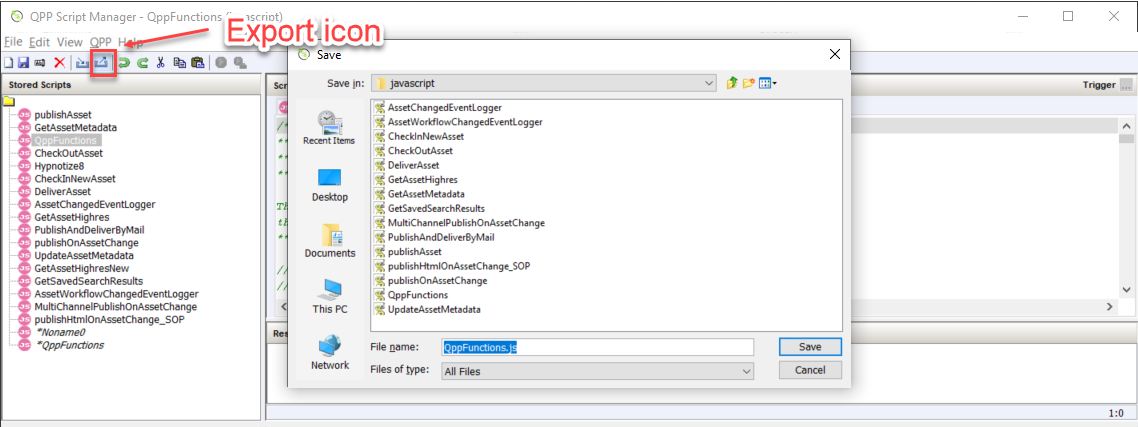
Select the Export icon
 in the toolbar.
 -
Right click on a script name in the Stored Scripts section, and then select Export in the context menu.
-
- Service Manager opens the Save dialog box
-
Select a location on your local machine and then select Save.
Note: While exporting a script, you can also change the name of the script in the Save dialog box.
Priyanka Bhotika
Comments