Summary: The conversion process is divided into the following two steps:
-
Convert DOCX Files into XML Files, in which you manage all the files on your local machine.
-
Upload the converted XML Files from your local machine to your QPP NextGen server.
Solution: Convert DOCX files into XML files After you have successfully set up the DOCX Converter tool, you can begin conversion in DOCX tool through the following steps:
-
In the field Content Type, select the content type (corresponding to the content model you want to add support for) from the content types available on the connected server.
-
If a content model corresponding to your DOCX files is not available, you must create one. For more information, see how to create a content model in QPP NextGen.
-
In the field Source Folder, set the path to the folder on your local machine where DOCX files are stored for conversion.
-
IMPORTANT: You must ensure that all the DOCX files in the source folder are based on the selected content type beforehand. Otherwise, QPP NextGen would not allow you to open the converted XML files.
- In the field Destination Folder, set the path to the folder on your local machine where you want to store the converted XML files.
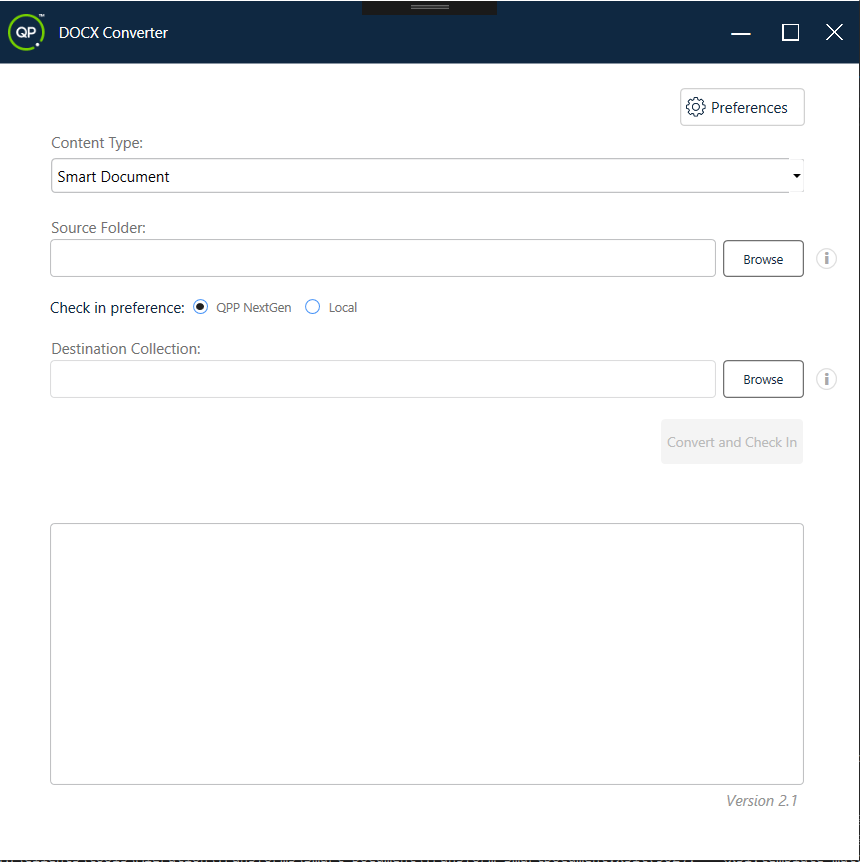
- Select the button Convert to begin the conversion process.
- The DOCX tool window displays the progress of the conversion by generating logs in the lower part of the window. The logs also display any errors that may occur during the conversion.
- DOCX Converter tool creates a folder with the name of the content model in the destination folder to store the converted files.
- DOCX Converter tool also creates a folder Images inside the content model folder to store any image files in the source DOCX files.
Priyanka Bhotika
Comments