Follow the below mentioned steps to add a new group:
- Login to QPP NextGen as Admin and go to People tab.
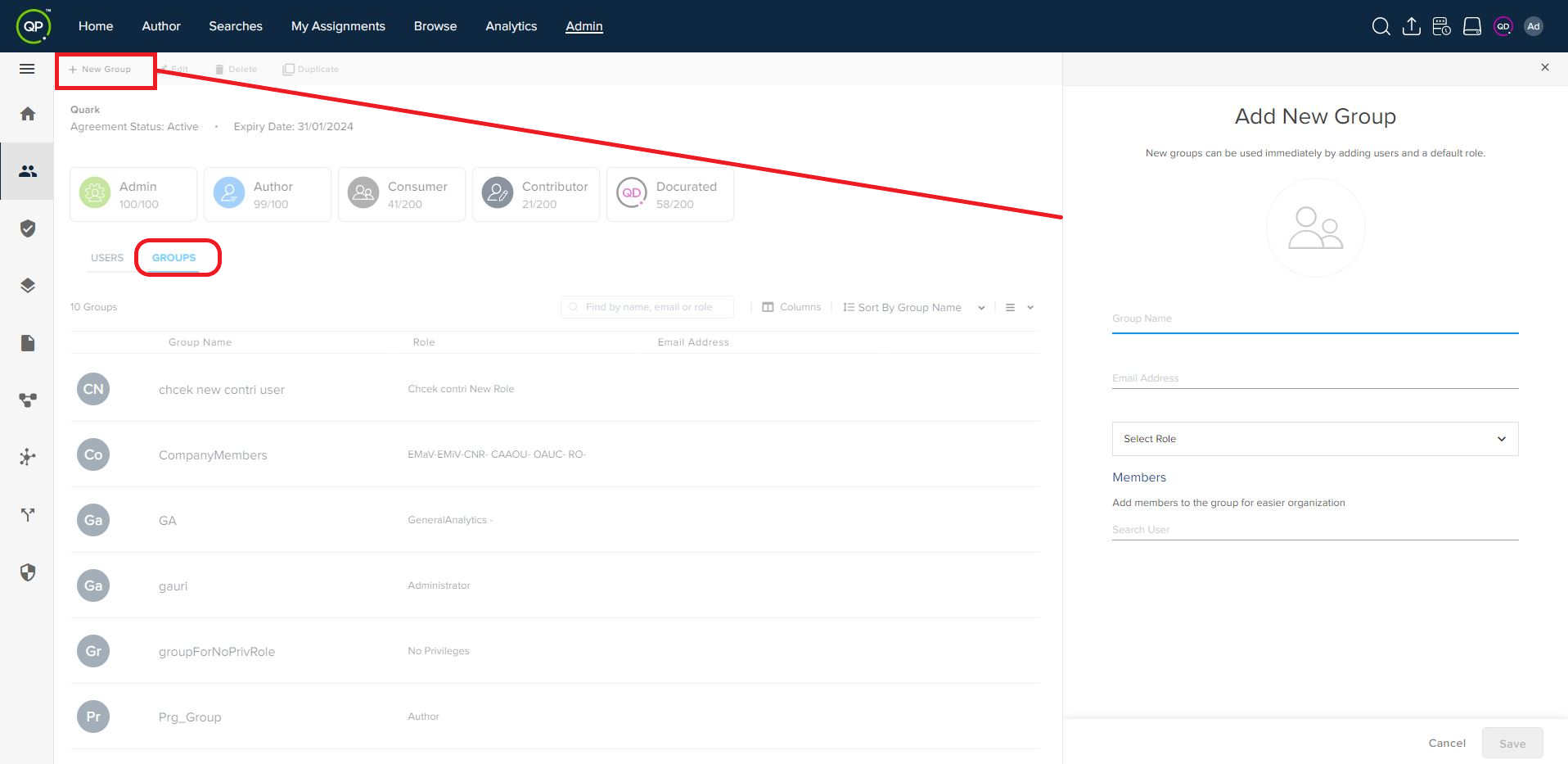
- Under the Groups tab of the People page (Admin), click on the button + New Group in the top of the bar actions to open the Add New Group pane.
- In the Add New Group pane, add an image, enter group name, and email address, select a privilege, and search user, then select a member to add in the group.
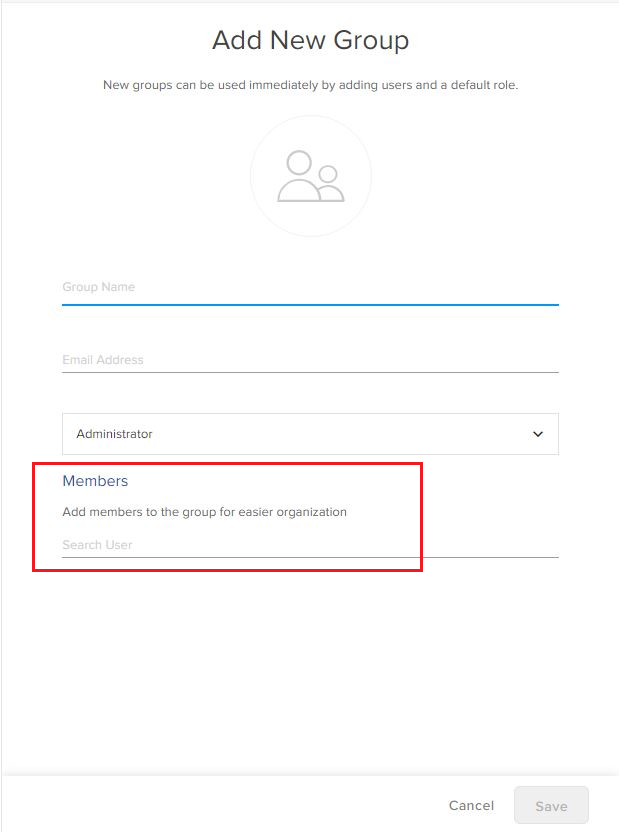
- Click on the Add button to add the selected user and then select the button Save to create the group.
- The Admin module displays the overview of the newly created group in the Group Details pane with the options to edit and delete the group.
Priyanka Bhotika
Comments