QPP NextGen web application allows you to create or change a branch of a document from several locations across the user interface.
Create a Branch
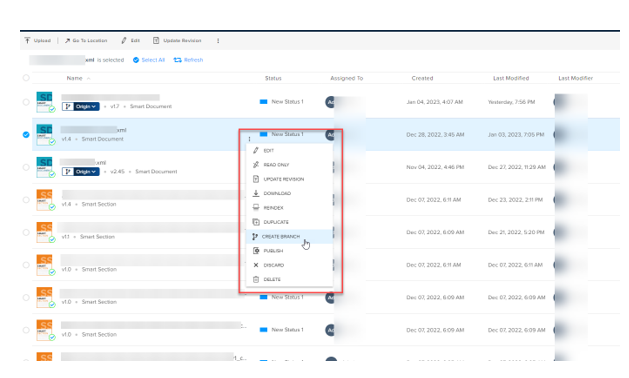
The option to create a branch is available at the following locations:- Kebab menu of an asset on any of the asset listing pages
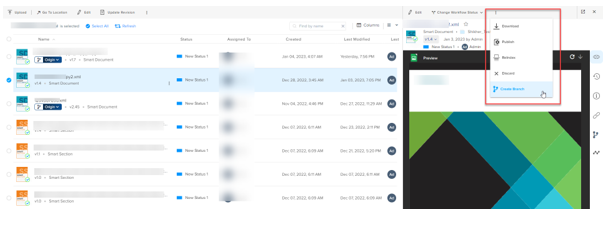
- · Kebab menu at the top of the Asset Details pane
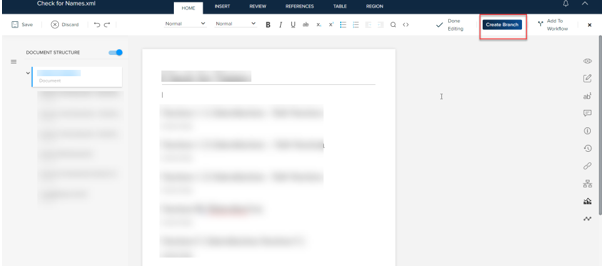
- Under the header ribbon of the authoring canvas
- Additionally, you can also create a branch of a section used in a document from within the navigation menu (through the section context menu) if the section is already available on the server as a component.
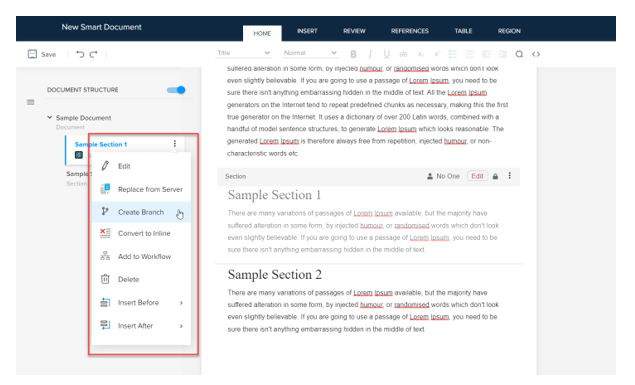
Note: When a branch of a document or a component is already available on the server, instead of a standalone option to Create Branch, you see a branch menu, which may vary based on from where on the user interface you are invoking the menu.
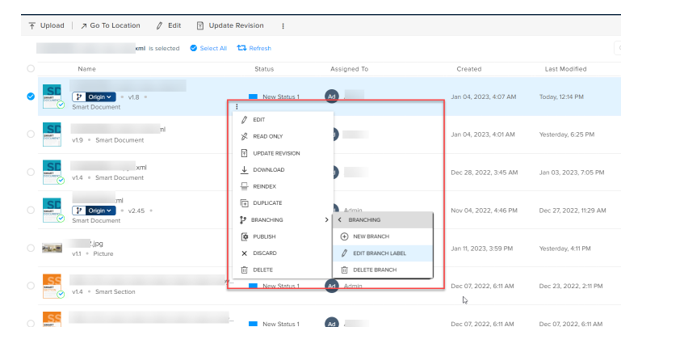
To create a branch:
1. Select the button or context menu option Create Branch (based on where you are on the user interface) to open the dialog Create Branch.
2. In the dialog Create Branch, provide a name for the branch in the field Branch Label
Note: The field Branch Label is optional. When you do not provide a name for the branch, QPP NextGen automatically assigns a number to the branch.
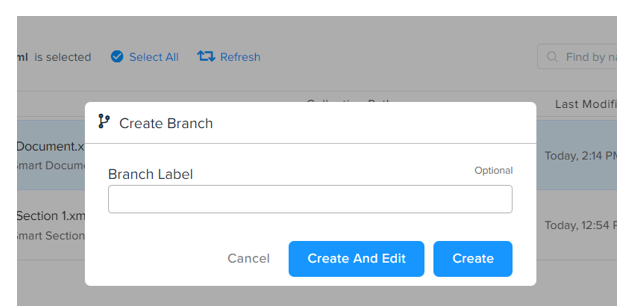
3. Select the button Create to save the new branch on the server or select the button Create and Edit if you want to start working on it right away in the authoring canvas.
Priyanka Bhotika
Comments