You can create a master page in the following two ways:
- By adding elements on a blank master page
- By capturing and managing elements on a page from an imported document
- After you have created or opened a project in QuarkXPress, in the header ribbon bar, select Windows > Page Layout or use the keyboard shortcut F10 (both Mac and Windows) to open the Page Layout palette.
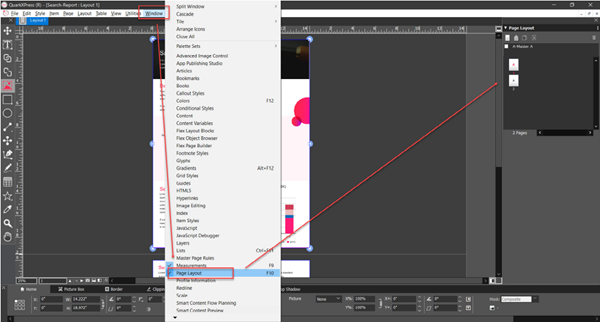
Note: The palette Page Layout lists all the pages in your project and a default blank master page, which you can use to create a master page for a page in your project
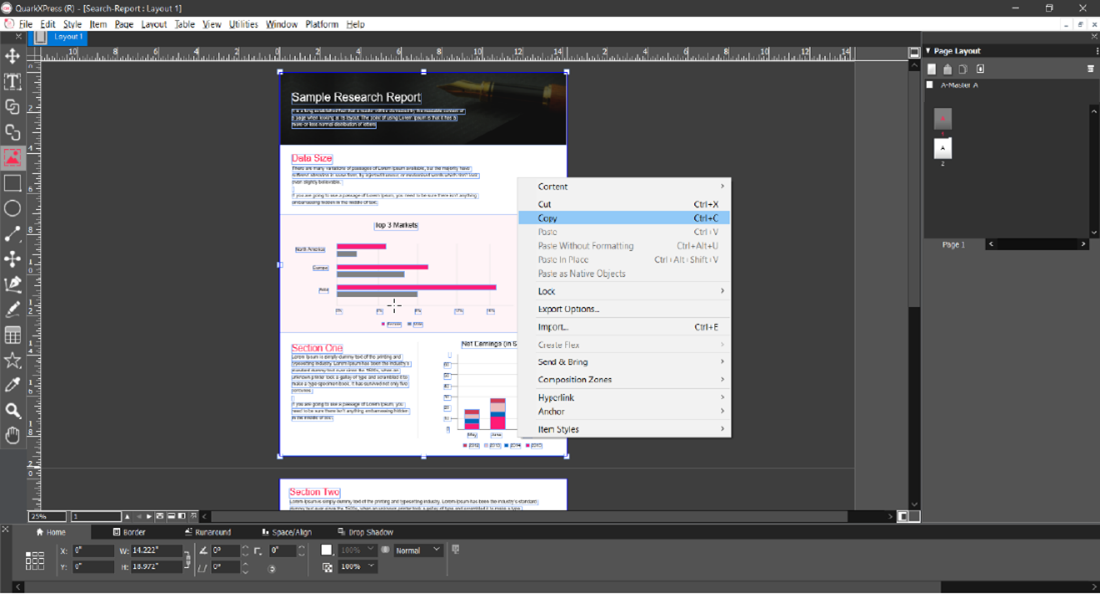
- Select the page of your project from which you want to create a master page, right-click, and then select Copy in the context menu to copy all the elements (drawn or imported) on the page.
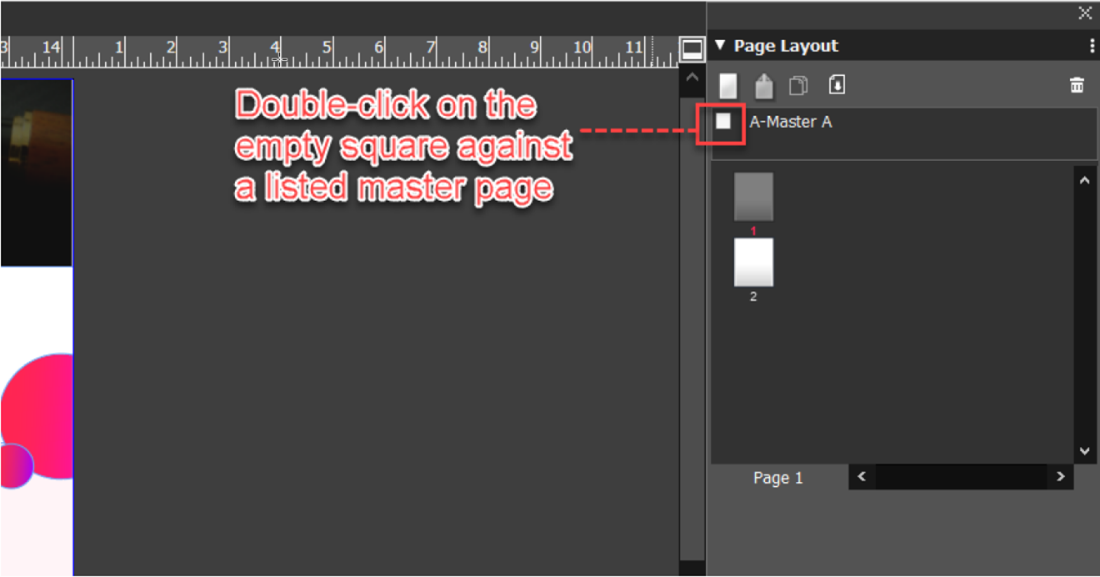
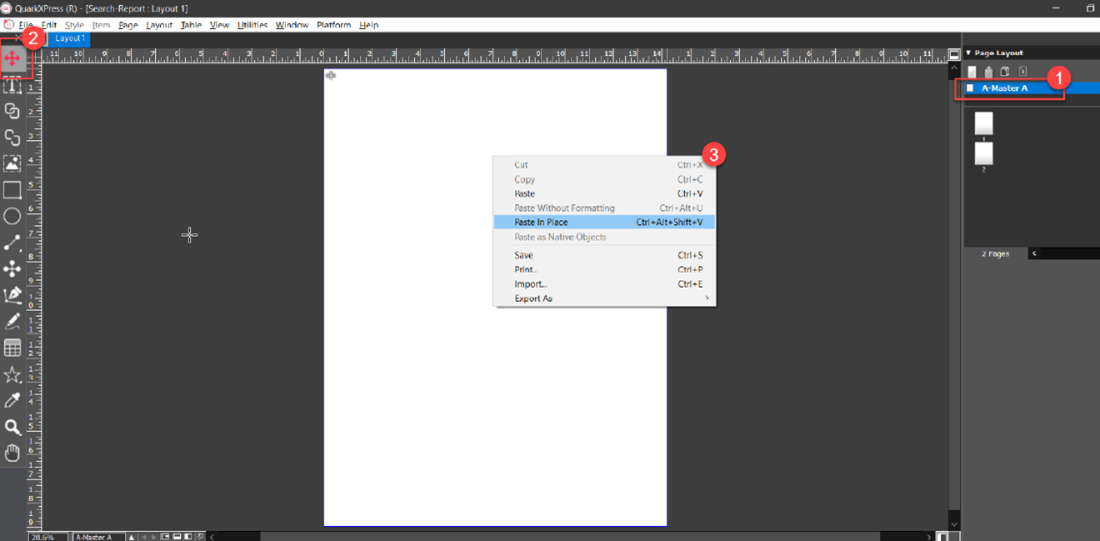
- Double-click on the blank square against a listed master page to open a blank master page.
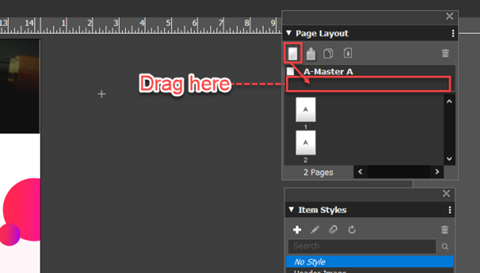
Note: If your project contains more than one page, you have to create master pages for the other pages. To create a new blank master page, select and drag the blank vertical rectangle in the Page Layout palette to the list of the master pages area.
- Select the Item Tool icon
in the left toolbar (if not already selected), right-click on the blank master page canvas, and then select Paste In Place in the context menu to paste the content of your project page to the master page.
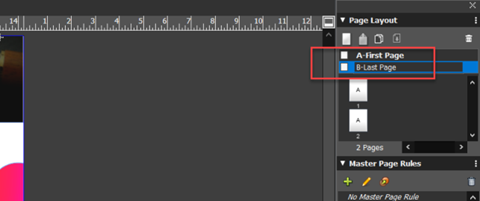
- Double-click on a master page name to rename it, if required. By default, QuarkXPress names master pages as A-master A, B-Master B, and so on.
Priyanka Bhotika
Comments