Product: Quark Publishing Platform (QPP) NextGen, QuarkXPress
In large projects with numerous sections, it can be difficult to identify which style you have applied to a section or a section element. The Smart Content Preview palette simplifies the task through the following steps:
-
From the header ribbon bar, select Windows > Smart Content Preview to open the Smart Content Preview palette.
-
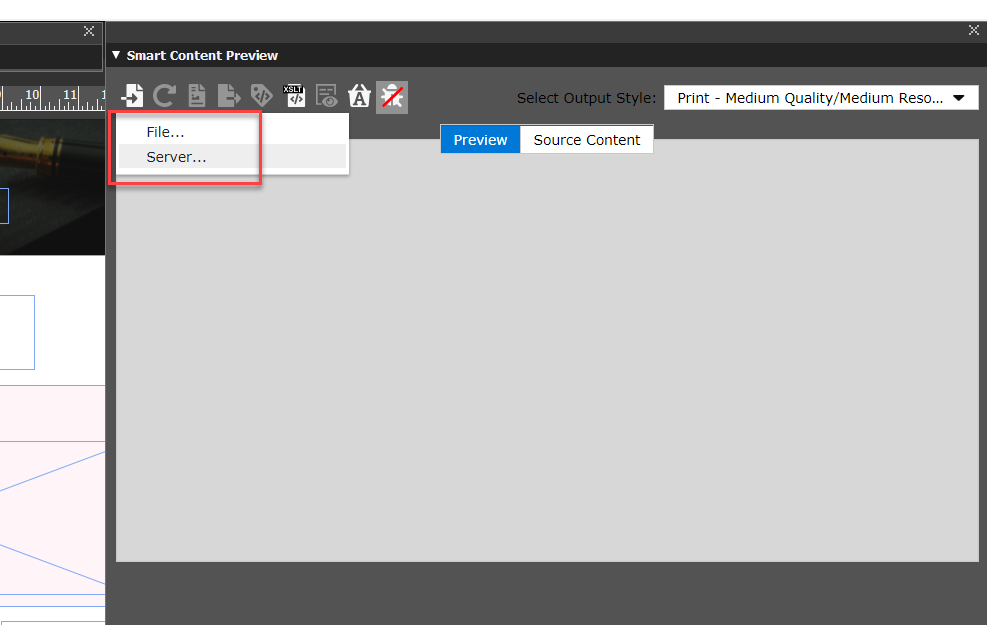
If you have not imported the document for which you are creating a publishing template in the Smart Content Preview palette, import the document.
-
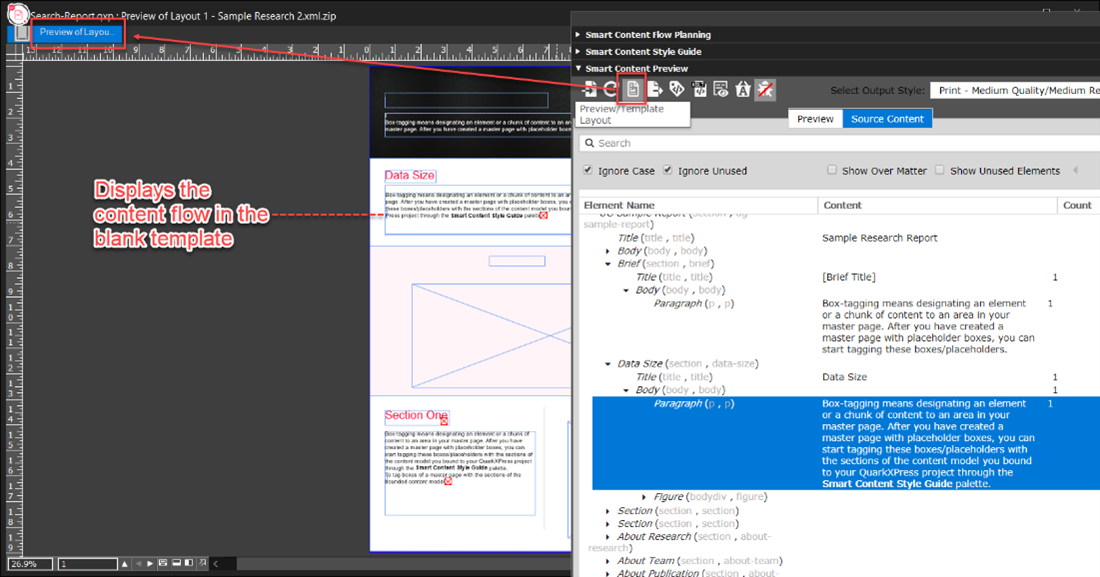
Switch to the Preview view of the project in the Smart Content Preview palette.
-
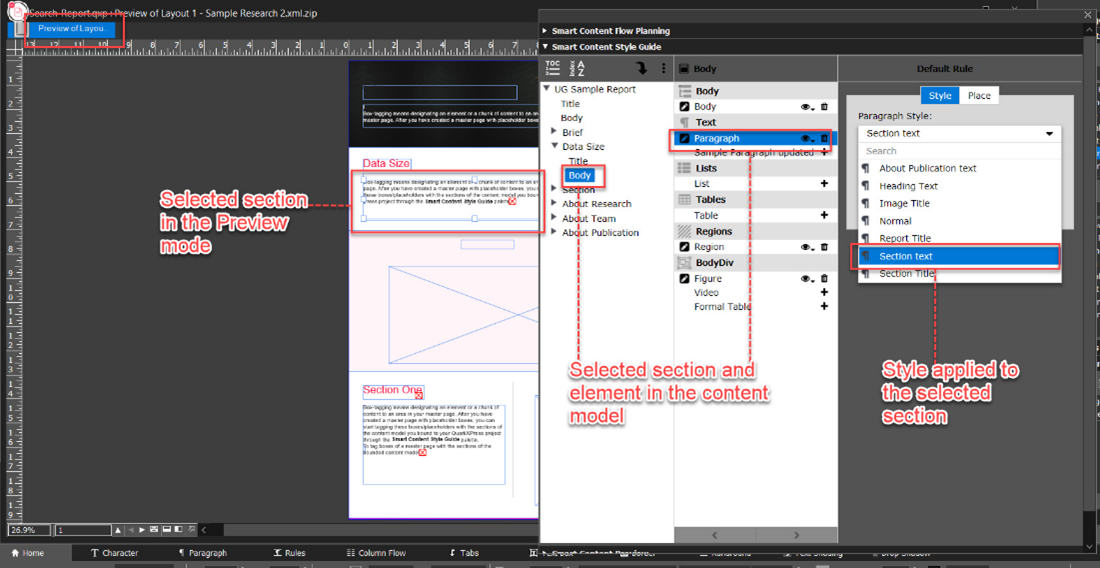
Select the section or section element for which you want to check the style.
-
Expand the Smart Content Style Guide palette where QuarkXPress highlights the tagged section or section elements in the selected box.
If you want to see all the elements/elements sections on which you have applied a particular style or group of styles, you can view through the Smart Content Style Rules Viewer palette.
Priyanka Bhotika
Comments