Product: Quark Publishing Platform (QPP) NextGen
The option to manage forms inside the edit workflow section allows admin users to choose which properties are visible to authors and contributors when the content associated with this selected workflow is opened with a property pane.
The property pane shows all properties by default, but this option restricts the number of properties that can be shown to the users or authors for an asset of a specified content type which is in the specified workflow.
To Manage Forms within the workflows:
-
Click ' Workflows'. The Workflows home page screen displays.
-
Click on any workflow you would like to edit.
-
After the workflow opens, click on the 'Manage Forms' option.
-
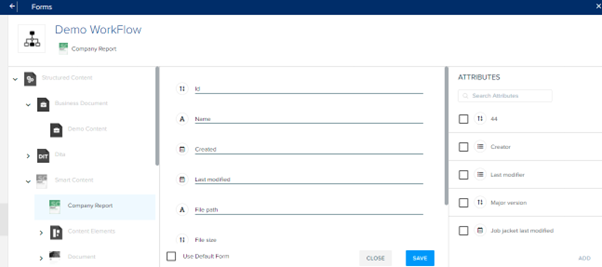
After clicking manage forms, a window opens with all the content types written in the leftmost pane.
-
All the content types that are not associated with the selected workflow will be faded and can't be selected while the associated ones will be shown s colored and selectable.
-
As the content type opens after getting clicked on, it will show all the properties which are already being displayed in the middle tab.
-
To edit the properties, uncheck the 'Use Default Form' checkbox present at the end of the page.
-
After unchecking it, all the attributes will be shifted to the rightmost pane.
-
Search and select the attributes from the pane and click the check box before them to show them in the properties pane.
-
After selecting all the desired attributes, click 'Add'. The added attributes will again be shown in the middle tab.
-
Click 'Save' to save the changes and go back to Workflow page.

Priyanka Bhotika
Comments