Product: Quark Publishing Platform (QPP) NextGen
Summary: The QPP NextGen Script Manager (or Script Manger) allows you to manage automated scripts that perform actions without requiring another QPP NextGen application or user intervention. Script writers can access almost all QPP NextGen Server services through the Script Manager interface, including all Data Transfer Objects (DTOs) and Java™ Message Service (JMS) messages.
Scripts initiate actions based on QPP NextGen events - scheduled or on a user’s single click. Your QPP NextGen installation includes sample scripts that you can import into Script Manager.
To logon to QPP NextGen Server application through Script Manager, an Auth Token (authentication token) is required.To get the Auth Token:
-
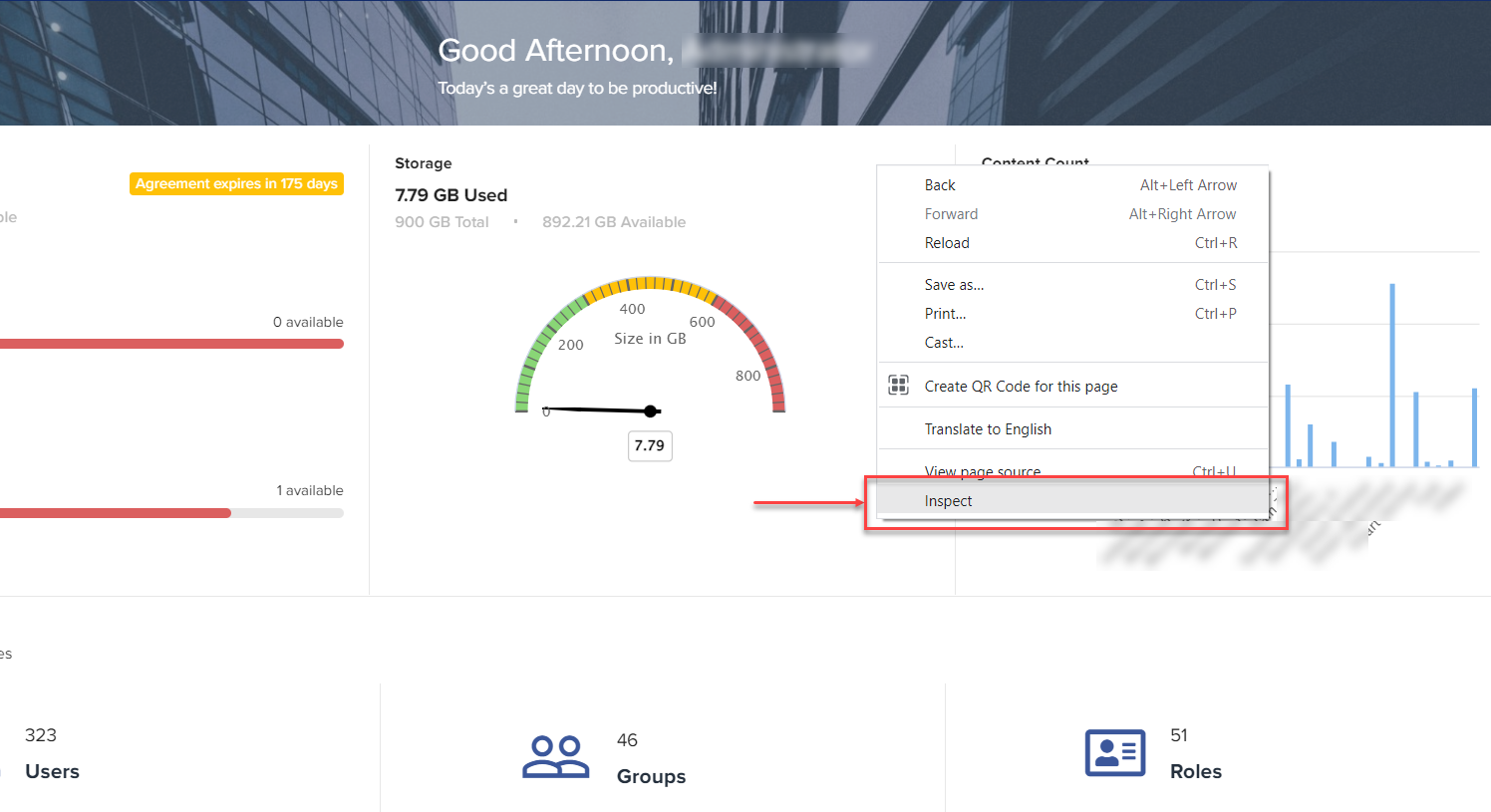
Logon to QPP NextGen Server through a browser.
-
After you are logged in, right-click anywhere on the browser page and then in the context menu, select Inspect.
-
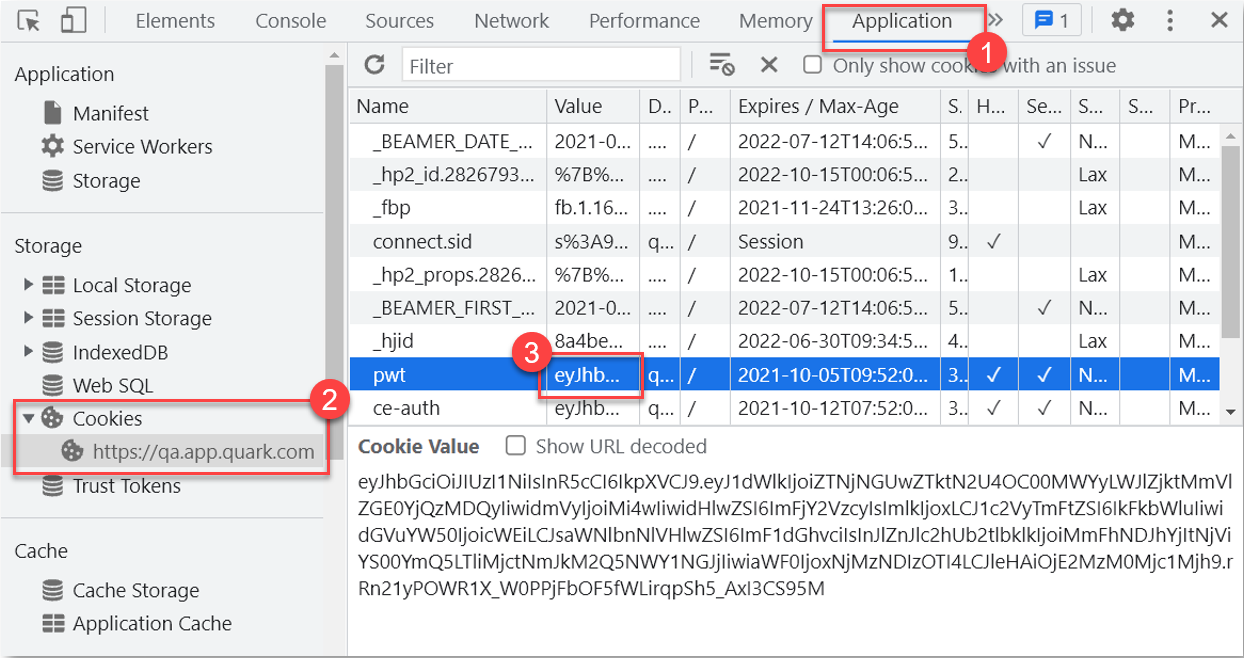
In Inspect window, go to the menu tab Application.
-
In the left pane, select Cookies and then select a server (the URL of server) to view a list of cookies related to the server.
-
Select the cookie pwt and copy the value against it, which is the Auth Token.
-
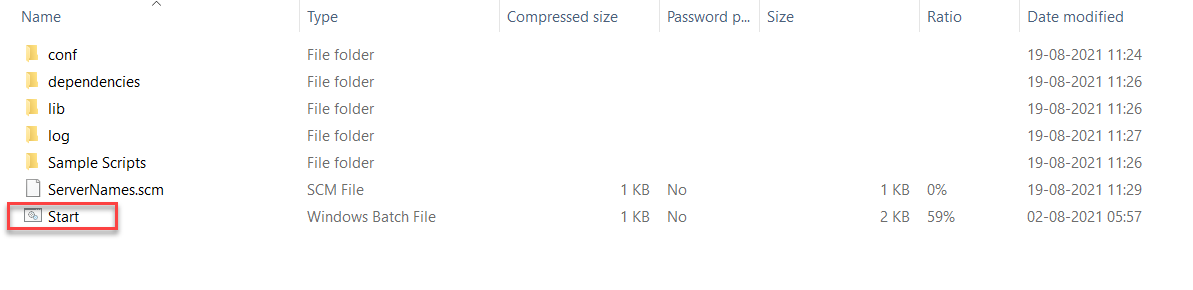
In the extracted folder, double-click on the file Start.bat to open QPP NextGen Server Log On dialog box.
- In the dialog box Log On, provide the following information:
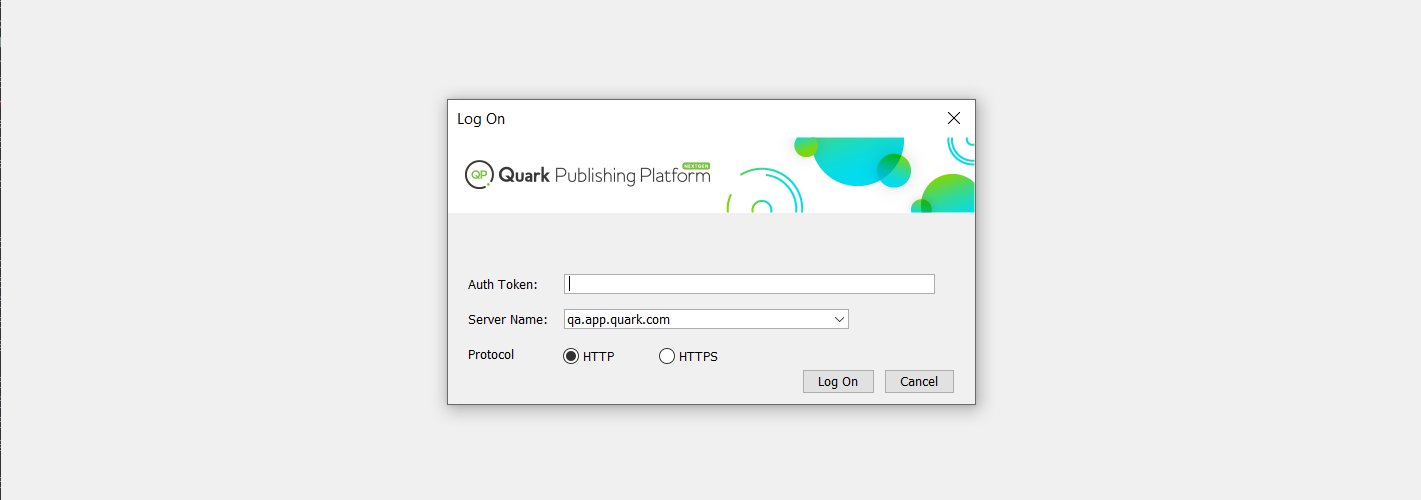
- Auth Token
- Server Name
- Protocol (select HTTPS)
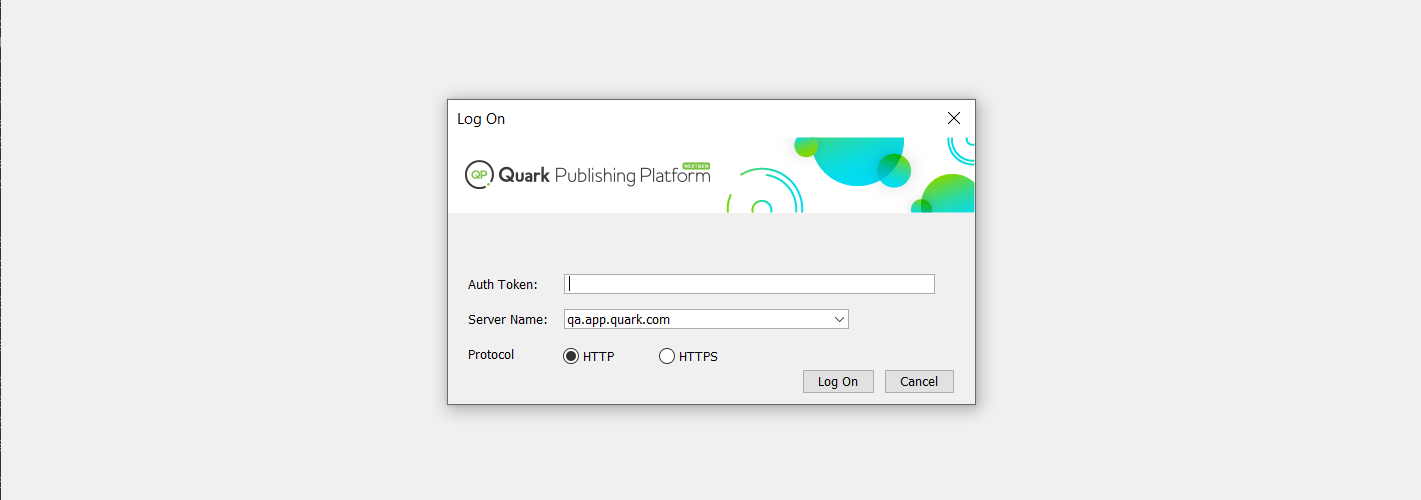
8. Select Log On.
Priyanka Bhotika
Comments